Overview
95 RAP gives teachers the flexibility to modify the scope and sequence of instruction by skipping optional practice lists or lessons for a student in Word Attack. Optional lists are built into the K–200 levels to introduce new patterns in isolation and provide additional practice before students move into the corresponding numbered instructional list.
While this incremental approach is valuable for students who benefit from extra scaffolding, some students demonstrate proficiency quickly and don't need this additional layer of practice. For these students, teachers can skip optional lists and move directly to the numbered list that follows.
Key Considerations
- Optional practice lists are available throughout the K–200 levels.
- These lists introduce patterns in isolation and provide additional practice opportunities.
- Students who demonstrate mastery may not require this additional scaffolding.
- Instructors should use professional judgment to determine whether optional lists should be completed or skipped for each student.
- The Skip All Optional Lists toggle streamlines this process by automatically moving a student to the next numbered list, but the individual pencil-icon method is still available for more granular control.
- Skipping optional lists is completed by the teacher from the Instruction section of the app.
What's New: Skip All Optional Lists Toggle
Previously, teachers could only skip optional lists one at a time using the pencil icon next to an individual list and selecting the "Skip" option. That method still works and remains available for teachers who want to skip lists individually.
Now, there's a faster way to apply this same guidance across all optional lists at once. A new Skip All Optional Lists toggle is available in the Word Attack section under the Settings gear icon, located to the right of each student's name. Turning this toggle on automatically skips (or unskips) all Word Attack lists and lessons marked as OPTIONAL for that student, moving them directly into the numbered instructional sequence.
Why Use This Feature
Throughout the K–200 levels, optional practice lists are designed to:
- Introduce new patterns in isolation before they're grouped together.
- Provide additional practice opportunities to build accuracy and confidence with a new pattern.
For students who consistently demonstrate mastery, this extra scaffolding may not be necessary. Skipping optional lists allows these students to move through the RAP sequence more efficiently while still receiving targeted intervention on the skills they need.
The Skip All Optional Lists toggle makes it easy to apply this instructional judgment across the board, rather than skipping lists one by one.
How to Skip Optional Lists
Find the Skip All Optional Lists Toggle
- Go to the Word Attack section of Instruction.
- Find the student's name in the list.
- Select the gear icon next to the student's name (shown in the red box).
- Turn on the Skip All Optional Lists toggle.
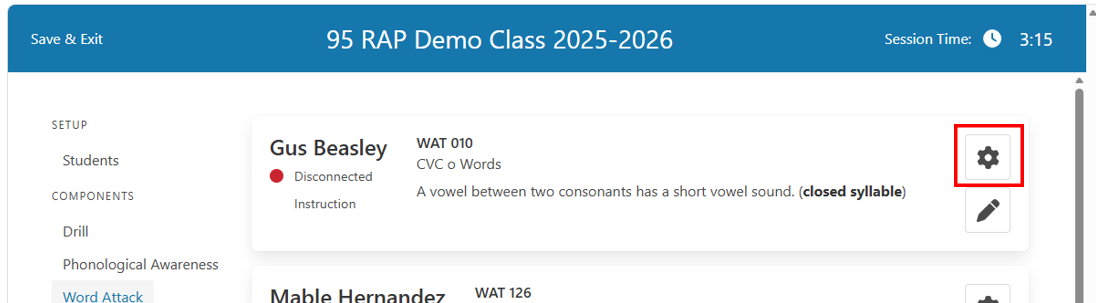
Caption: Location of the Settings gear icon next to a student's name in the Word Attack section.
Option 1: Skip All Optional Lists
- Navigate to the Word Attack section of the Instruction area of the app.
- Locate the student's name and select the Settings gear icon to the right of it.
- Toggle on Skip Optional Practice Lists to YES
- All lists and lessons marked as OPTIONAL for that student will be automatically skipped, and the student will move to the appropriate WAT list automatically.
To reverse this, toggle the setting to NO to reinstate the optional lists in the student's sequence.
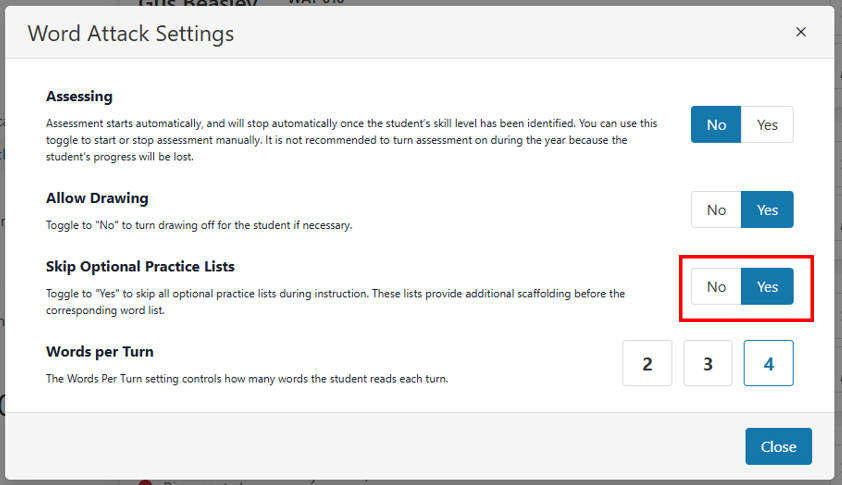
Caption: The Skip All Optional Lists toggle shown in the yes to skip position.
Option 2: Skip an Individual List (existing method)
- Navigate to the Word Attack section of the Instruction area of the app.
- Select the pencil icon next to the students name
- Locate the specific Optional Practice list that you want to skip.
- Select the list by tapping or clicking on the list
- Choose the Skip option at the bottom of the page
This method allows you to skip lists or lessons one at a time and remains useful if you only want to bypass a specific list rather than all optional lists at once.
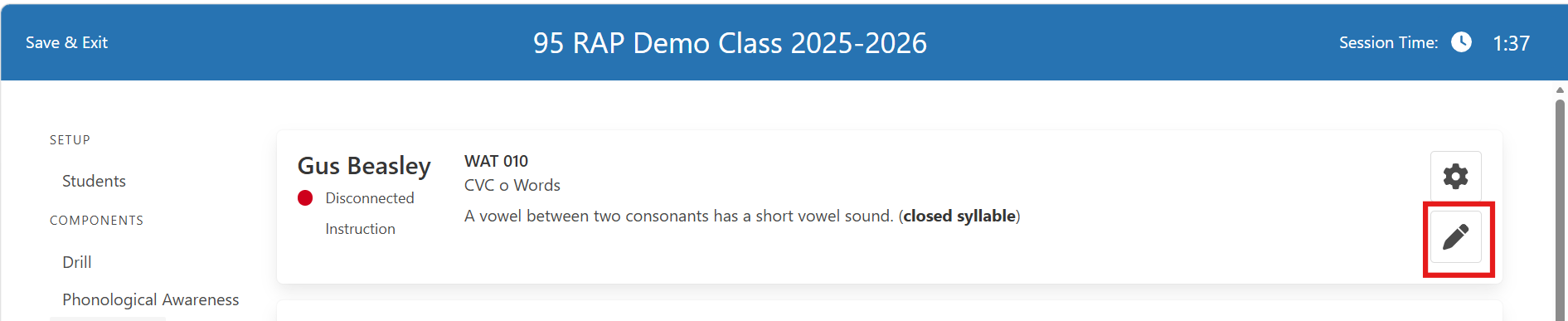 Caption: The pencil icon and Skip option for an individual optional list.
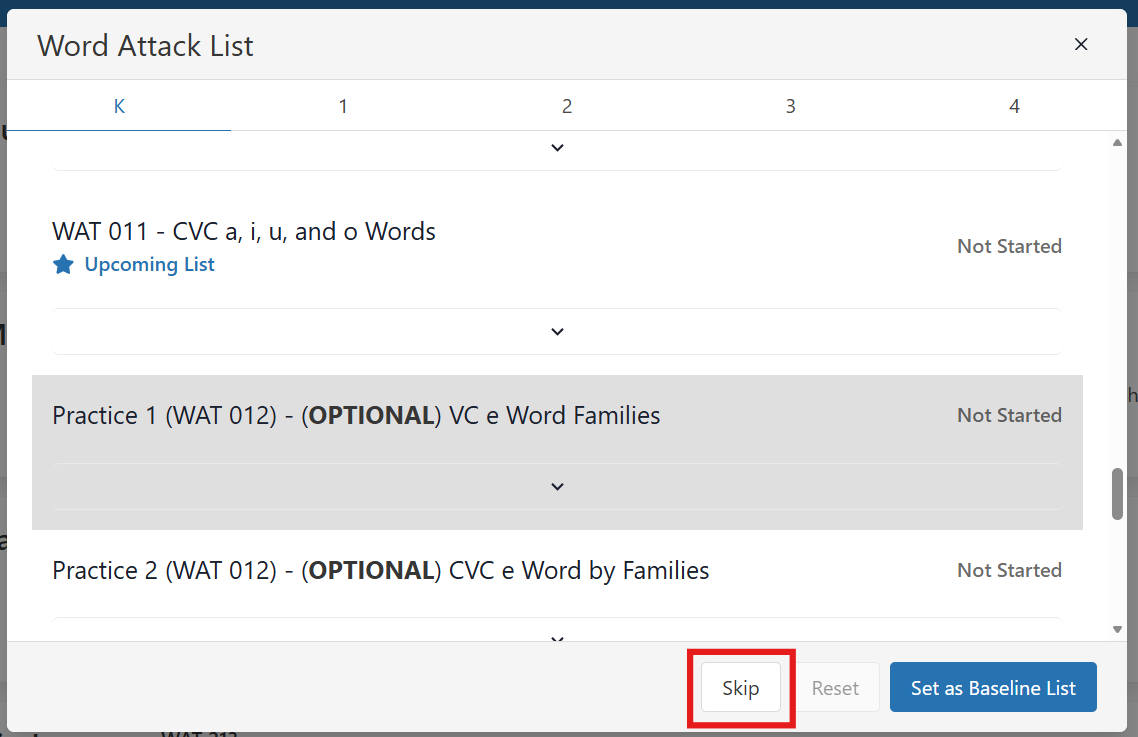
Caption: Overview of the Word Attack instructional sequence showing optional practice lists positioned before numbered lists.
Was this article helpful?
That’s Great!
Thank you for your feedback
Sorry! We couldn't be helpful
Thank you for your feedback
Feedback sent
We appreciate your effort and will try to fix the article