Data by Level
Overview
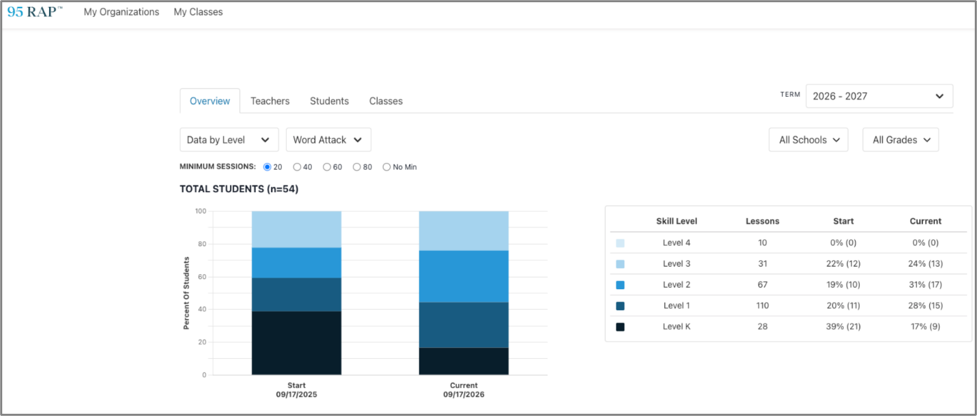
The Data by Level report gives district and school administrators an aggregated view of where students start in the 95 RAP curriculum, shown by level. It highlights both each student's starting instructional lesson and their current instructional level. This view provides a quick view of the first skill or lesson mastered as a result of instruction by the student based on the mastery rule and the latest or current skill or lesson mastered as a result of instruction based on the mastery role. The default and recommended mastery rule are that students my complete each item on the list correct three days in a row and then three weeks in a row without making an error on that work.
Where to Find It
Data by Level is located in the My Organizations section, which is visible only to District/Account and School Administrators.
To access the report:
- Click My Organizations
- Select the Overview tab
- Open the Implementation dropdown menu
- Select Data by Level
Understanding the Graph
The graph shows the total number and percentage of students at each level, broken into two columns:
- Starting Skill: Based on the first skill a student mastered during instruction.
- Current Skill: Based on the latest skill a student has mastered.
Hover over any color band to see the number and percentage of students at that skill level. The n=x value shown reflects the total number of students enrolled in RAP classes for the selected term.
Understanding the Table
Below the graph, a table breaks down the same data by level, showing the number of lessons at each level along with the corresponding student counts and percentages. These numbers match what you'll see when hovering over the graph.
Filters
You can narrow the results using the following filters:
- School and Grade: Select one or multiple schools and/or grades.
- Minimum Sessions: Limits results to students who have completed at least the selected number of sessions. Students with fewer sessions than the selected minimum are excluded while this filter is active.
Was this article helpful?
That’s Great!
Thank you for your feedback
Sorry! We couldn't be helpful
Thank you for your feedback
Feedback sent
We appreciate your effort and will try to fix the article